Table of Contents
I recently switched platforms. How do I access my subscription?
Because subscriptions are sold and managed by the app stores Google Play for Android and iTunes fo Apple. Subscriptions don’t automatically carry over when a user transitions to a new device. In cases like this:
- Please cancel your subscription in the Google Play store or the iTunes Store.
- Please take a screenshot of your RP Diet subscription settings showing your subscription expiration date.
- Contact us at app.support@rpstrength.com with that information. Our engineering team will make a manual adjustment to your account to ensure that once you switch to your new device, you will be able to use the app until your paid-for expiration date with no additional charge
Note: Your subscription will NOT auto-renew because of this switch. Once your expiration date is reached, the app will prompt you to subscribe once again.
I am subscribed, but the app is telling me that I’m not.
General Subscription Restoration
When your subscription cannot be found, you will be stuck on this screen when you try to use the app. On this screen, simply click “Already Subscribed?” This should resolve your issue.

iTunes / Apple App Store Subscriptions
There are a several reasons why your device cannot find your account. For example:
- Is the device logged into the same iTunes account as the one which the subscription was purchased under?
- Have you recently changed devices?
- Has any of your iTunes information, such as payment method changed? (Expired credit cards would be considered a payment method change.)
- Does your device/iTunes need to be updated?
Here are some steps that will likely resolve this issue:
- Make sure that your device is logged into a correct iTunes account: See Sign in with Apple ID.
- Check to make sure that you do indeed have an active subscription.
- Restart your device. Allow for a full reboot of your Apple device.
If these steps did not resolve your issue, please contact support at app.support@rpstrength.com.
Android / Google Play Store Subscriptions
There are a several reasons why your device cannot find your account. For example:
- Is the device logged into the same Google Play account as the one which the subscription was purchased under?
- Have you recently changed devices?
- Has any of your Google Play information, such as payment method changed? (Expired credit cards would be considered a payment method change.)
- Does your device or Google Play need to be updated?
Here are some steps that will likely resolve this issue:
- Make sure you are logging in with the correct Google Play Account.
- Check to make sure that you do indeed have an active subscription.
- Restart your device. Allow for a full reboot of your Android device.
- Force Play Store to stop and clear the cache and data.
- Update the Play Store App.
If these steps did not resolve your issue, please contact support at app.support@rpstrength.com.
Stripe Subscriptions
- Please make sure you are logging in with the same email address / login method as the one you used to create your account. If you have used the Apple login method, please make sure you are using the same method.
- Please make sure that you do indeed have a subscription.
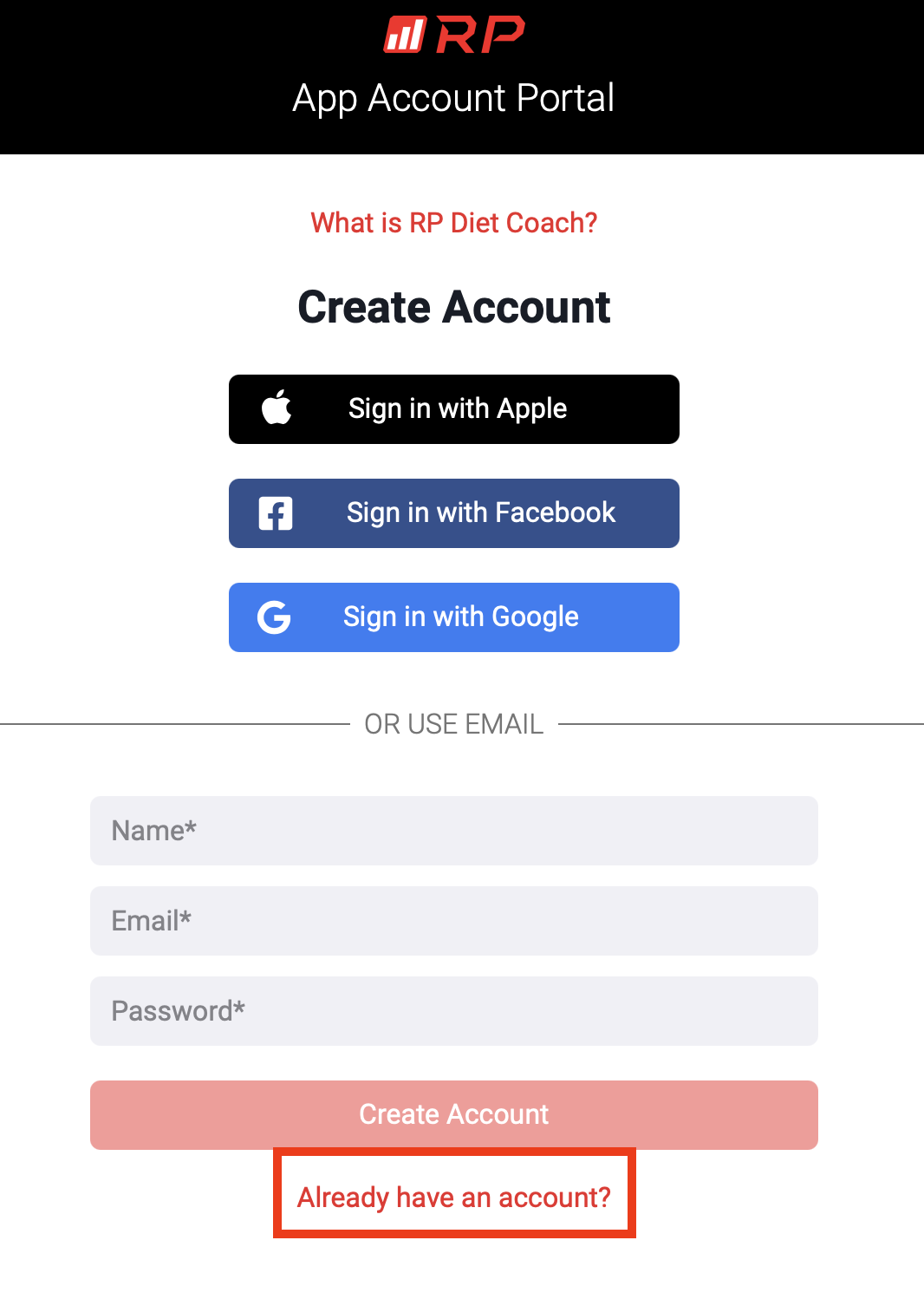
- Click “Already have an account, and sign in:
- Click or tap on the hamburger menu icon (☰) in the top left corner and select “Manage Subscriptions”:
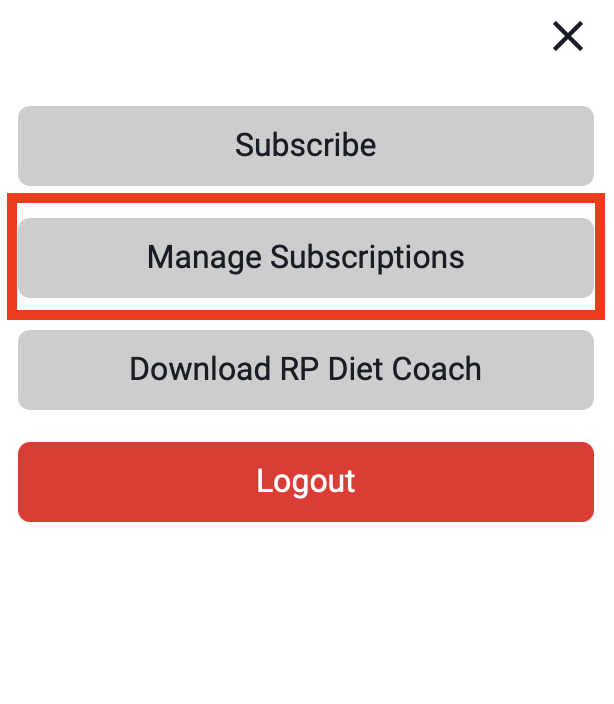
- Make sure that you have an active subscription.
If these steps did not resolve your issue, please contact support at app.support@rpstrength.com.
I am having issues logging into the app.
I am stuck on the log in screen.
If you typed in your information but getting stuck on this screen with no errors:
- Check to make sure that your app is up to date.
- Make sure you are connected to the internet. If you are on wifi, try your cellular connection to see if the issue is resolved. If the issue persists, please contact support at app.support@rpstrength.com.
Invalid Username and/or Password
In cases where the password is incorrect, you have the ability to change the password right from the login screen of the app using the “Forgot your password?” flow:
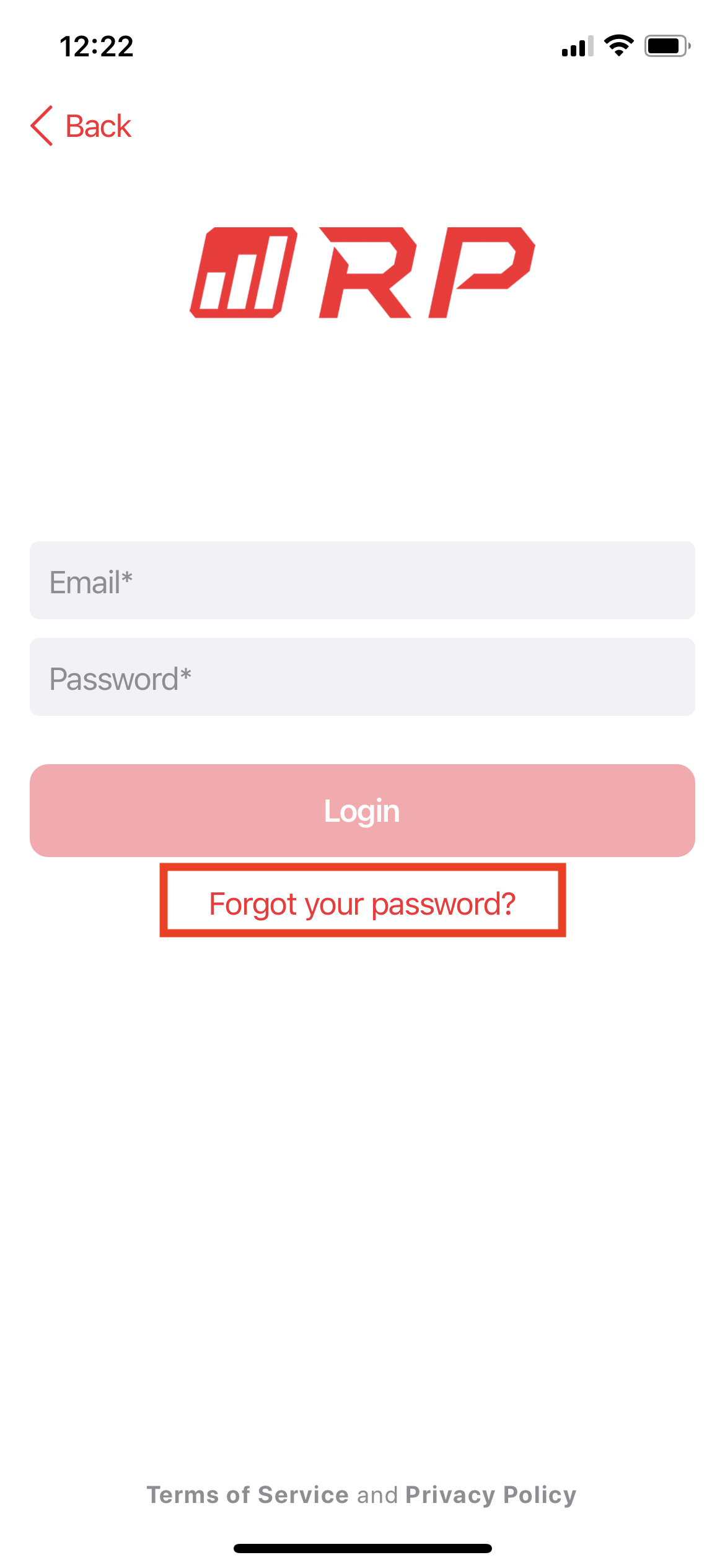
If you don’t see your password reset email, check your spam folder. If it’s not there, please contact us at app.support@rpstrength.com.
Log in issues with “Sign in with Apple”
(only available on iPhone devices)
Some users decide to use this feature instead of the standard email login method. When a user initially creates the account with this method, all subsequent log-ins have to be through this method.
Log in issues with “Sign in with Facebook”
If you are getting an error when trying to sign in with this method, simply try to log in using the email address that is associated with the Facebook account. If that does not work, contact us at app.support@rpstrength.com, and we will be able to assist you.